

SusEx Pedal Features, Functions, and Troubleshooting
IMPORTANT: The SusEx pedal must be on a flat, stable surface to operate properly. This includes Mode switching from the pedal, due to internal accelerometers.
Proper Use of Mode 2
When I’m in Mode 2 performing with CC1, why does the pedal suddenly switch to CC11? How can I avoid this?
Proper Use of Mode 3
When I’m in Mode 3 performing with CC1, why does the C1 Note get triggered when I don’t want it to? How can I avoid this?
Connecting Your SusEx Pedal to macOS Bluetooth
1. Navigate to ‘Applications/Utilities’ and there you will find “Audio MIDI Setup”. Open 'Audio MIDI Setup'.
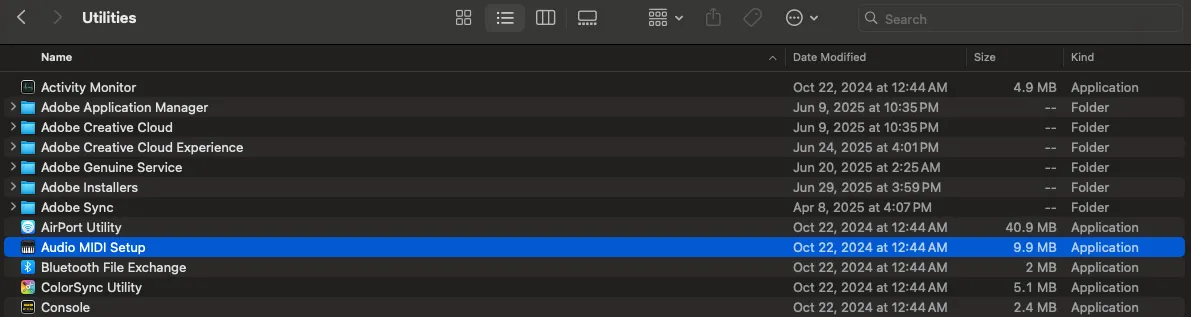
2. The Audio MIDI Setup window will open and reveal your current connections. Click the "MIDI Studio" menu and a drop-down will appear.
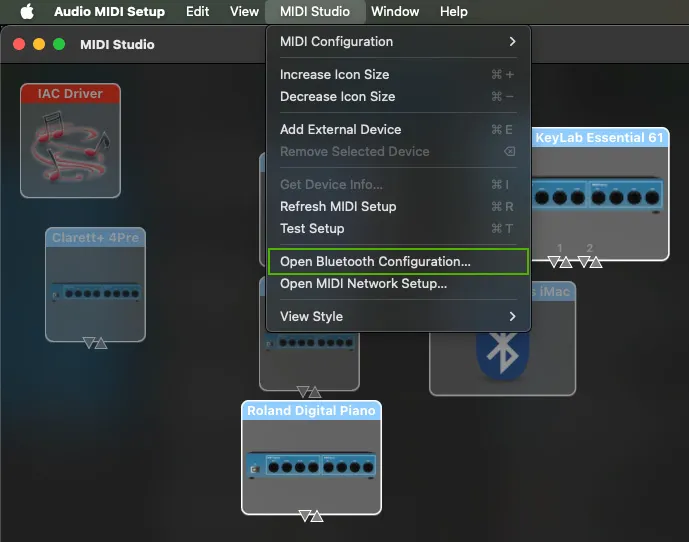
3. Navigate to 'Open Bluetooth Configuration' and click to open.
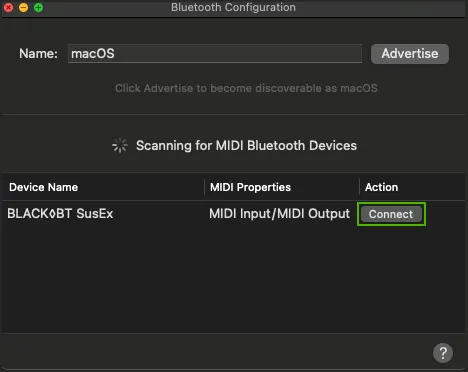
4. You should now see the Black BT SusEx connection appear in your list of detected Bluetooth devices. Click the "Connect" button to establish your connection.
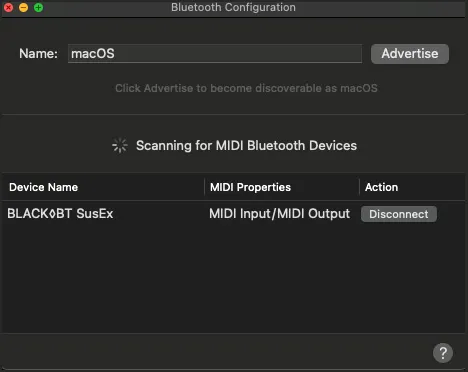
Once your Black BT SusEx pedal is connected, the "Disconnect" button is shown. This indicates a proper Bluetooth connection. You are now ready to connect the SusEx to your DAW.
Connecting Your SusEx Pedal to Windows PC Bluetooth
1. Download loopMIDI and MIDIberry for free and install them. loopMIDI can be downloaded: HERE and MIDIberry can be downloaded: HERE
2. Place the Black BT SusEx pedal on a flat surface and press the power button for 4secs+ to power on.
3. Connect the Black BT SusEx pedal to your Windows 11 Bluetooth connection:
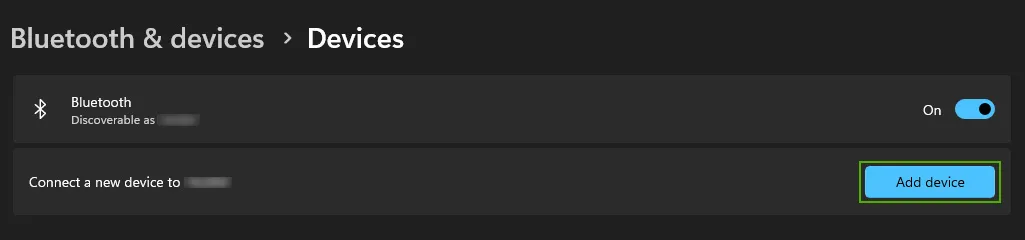
Click “Add device”
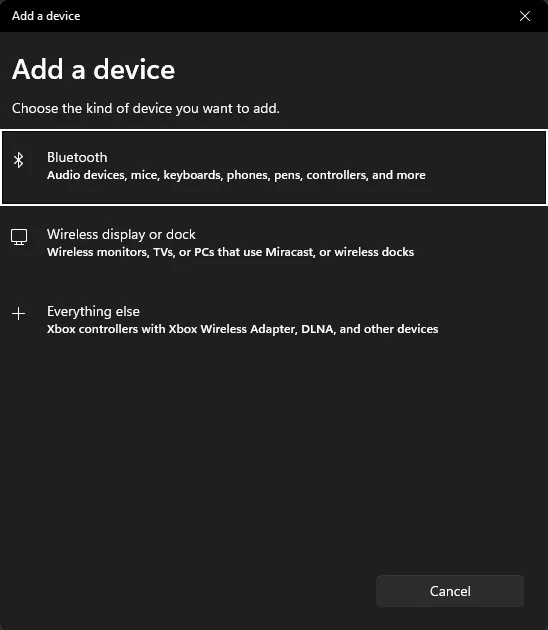
Click “Bluetooth”
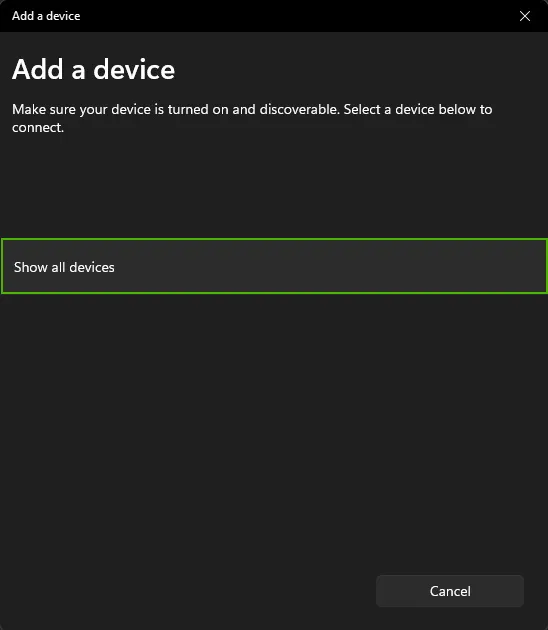
Click “Show all devices”
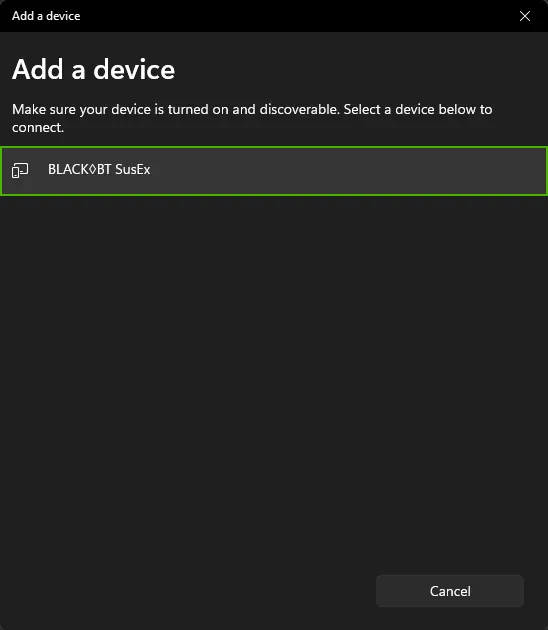
Click “Black BT SusEx”
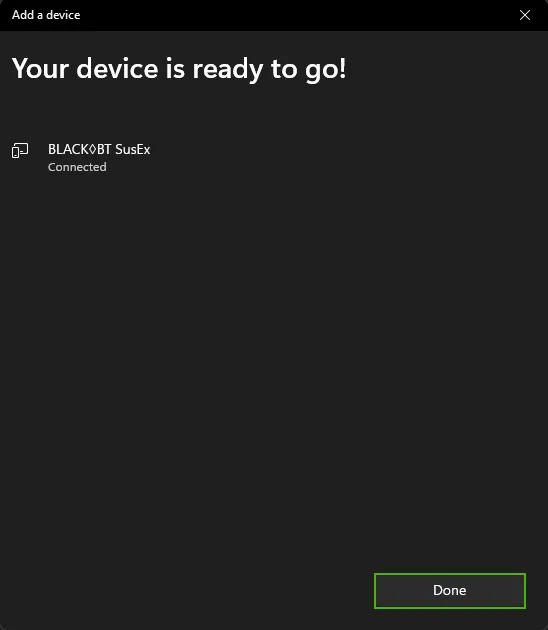
IMPORTANT: At this time, the Black BT SusEx pedal will show “Connected” for a few seconds and will then change to “Not Connected”. This is NORMAL. Proceed to the next steps in order for the connection to be reestablished.
4. Now launch loopMIDI to create a virtual MIDI port:
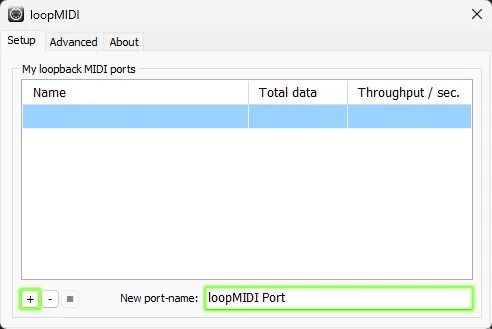
You can change the name to whatever you’d like, but for this example we are going to use the default name ‘loopMIDI Port’. Click the + sign to add it.
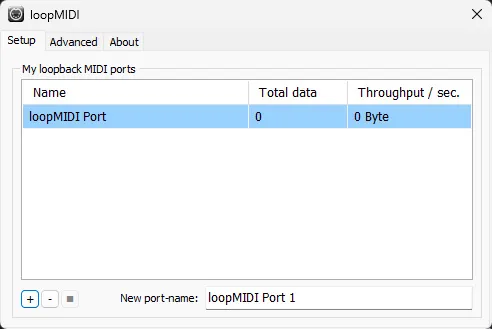
Once your virtual MIDI port has been created, proceed to the next step.
5. Now launch MIDIberry and your Black BT SusEx pedal will show up in the list.
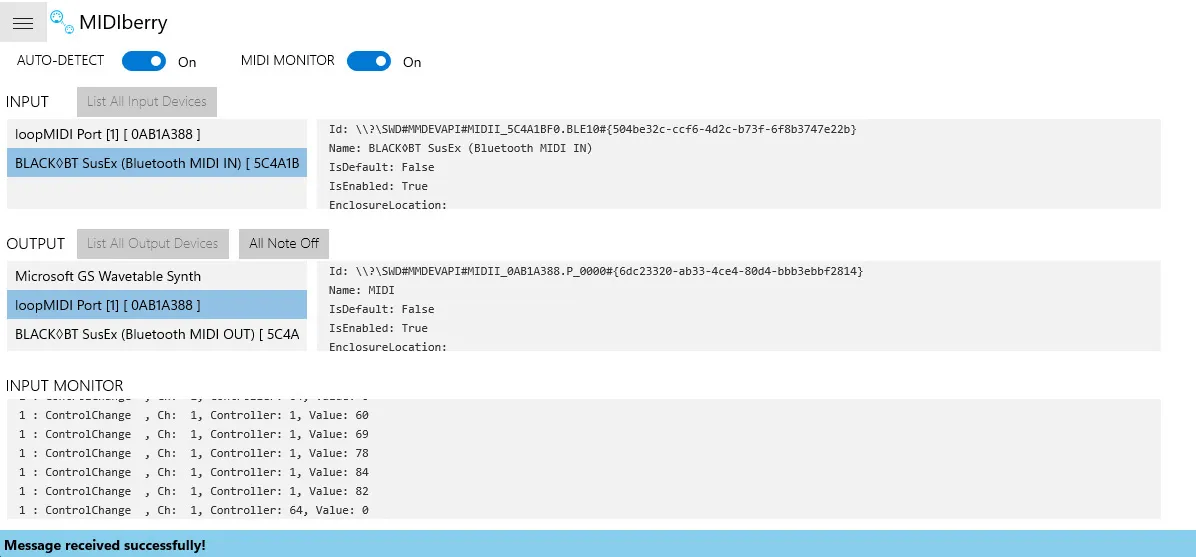
Under INPUT: Select the Black BT SusEx (Bluetooth MIDI In)
Under OUTPUT: Select your virtual MIDI port (loopMIDI Port)
When you move the pedal, you will see activity in the INPUT MONITOR window. This means you have a working connection and are ready to connect the Black BT SusEx pedal to your DAW.