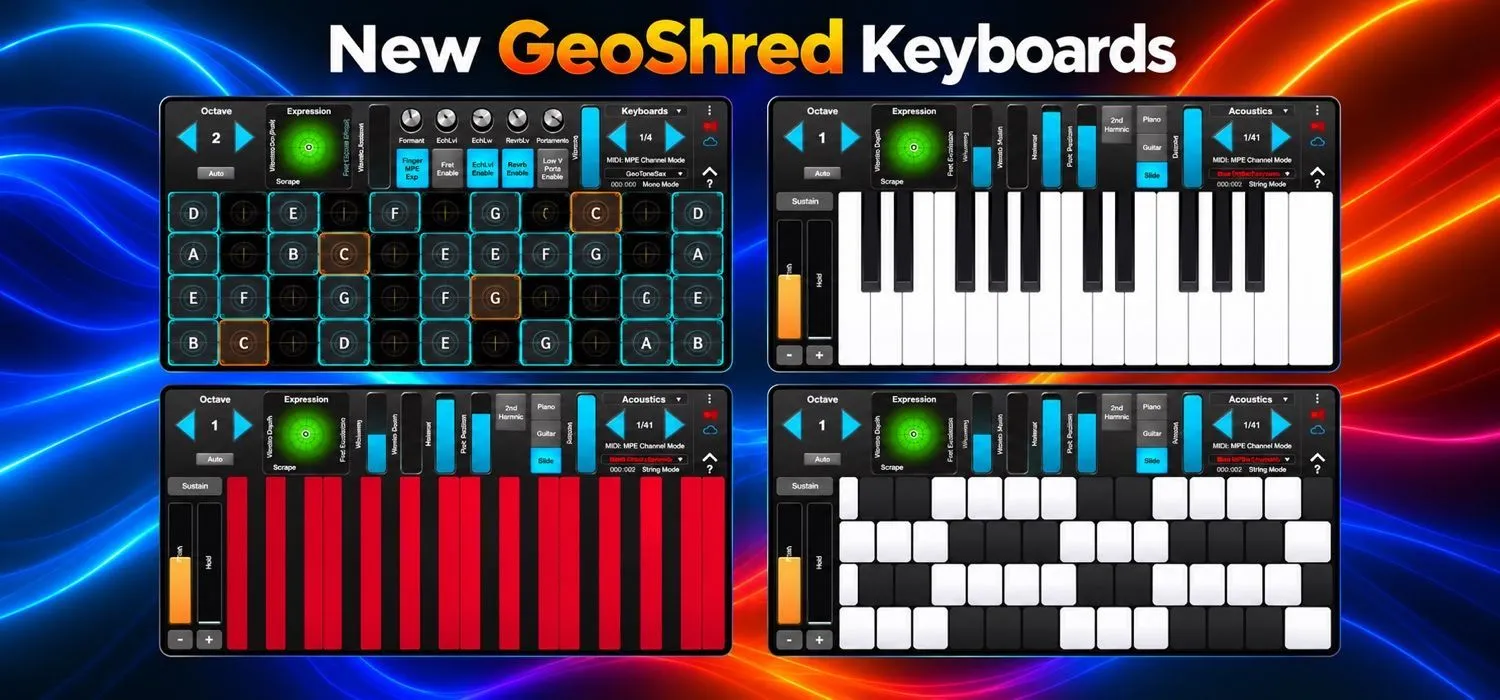
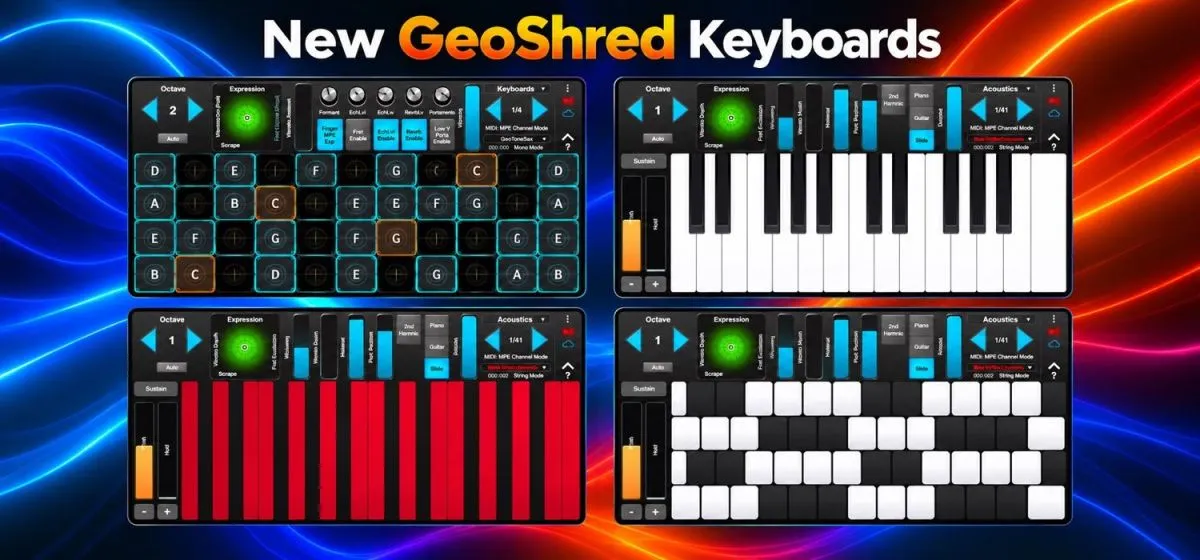
A familiar piano layout for a melodic sketch. An even row of keys for a lead line. A repeating pattern for exploring the same phrase in different registers. moForte's new GeoShred keyboards give composers and players more ways to approach the touch surface.
Piano, Uniform, and Janko layouts join the original isomorphic grid in GeoShred and GeoShred Studio. All three new layouts support MPE, and they are also available in the free GeoShred Control app for iPhone and iPad.
Watch the New GeoShred Keyboards in Action
moForte's demo shows the layouts and Touch Velocity response. Watch how the playing surface changes, then try the same short phrase with an instrument in GeoShred Studio.
Watch the keyboard demo on YouTube
Which New Keyboard Layout Fits Your Playing?
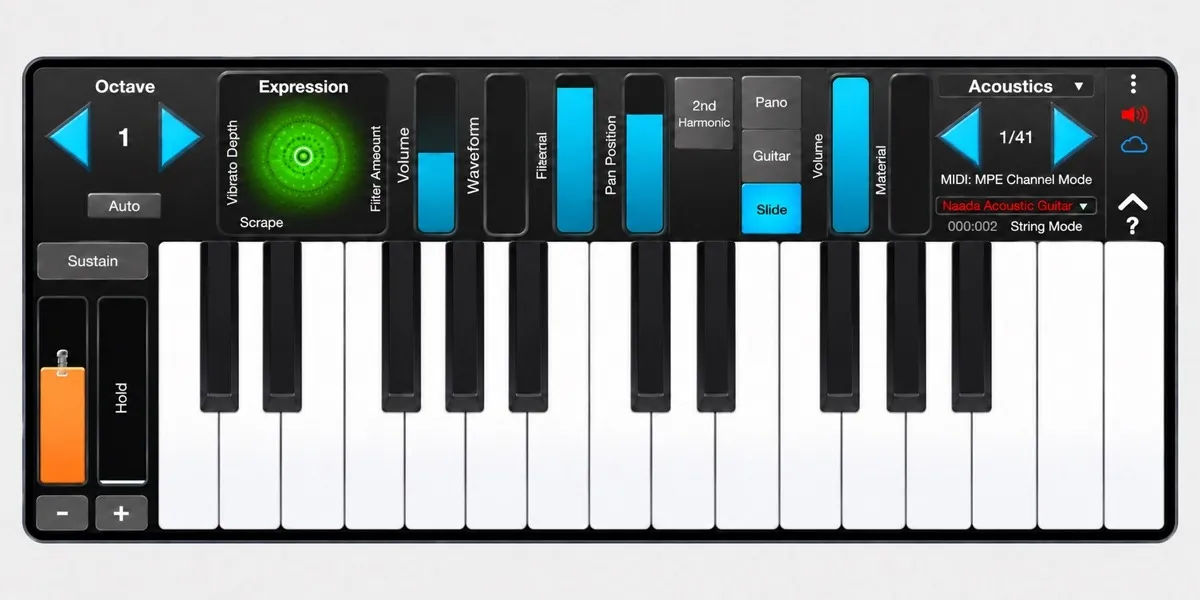
Piano: Start with a Familiar Note Layout
The Piano keyboard uses the traditional white and black keys. If you already think in piano fingerings, start here when sketching a melody or trying chord voicings with a polyphonic instrument such as Naada Acoustic Guitar.
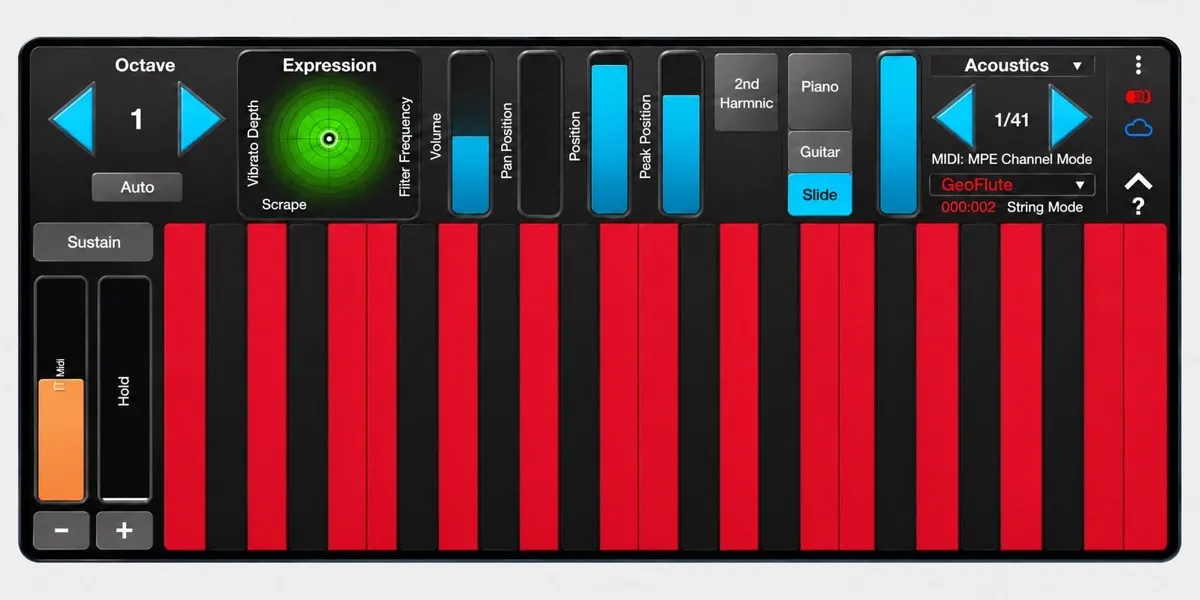
Uniform: Try an Even Playing Surface
The Uniform keyboard presents a red and black layout with evenly sized keys. Try a short lead phrase with GeoFlute and compare the reach between notes with the Piano layout.
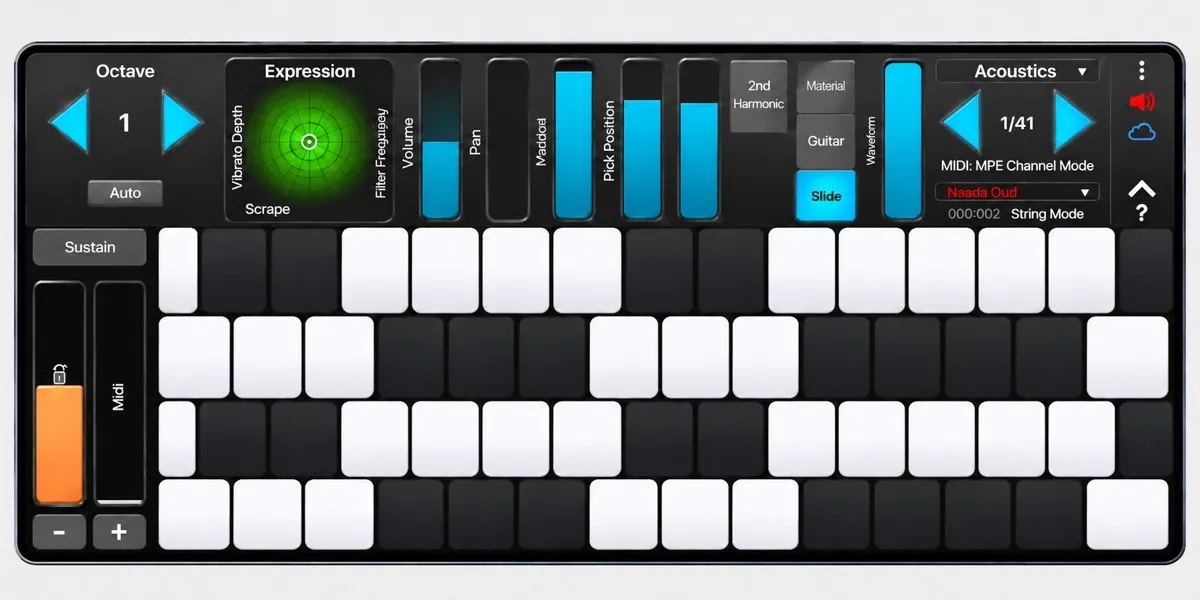
Janko: Explore Repeating Fingering Patterns
The Janko keyboard arranges notes across repeating rows. It gives you another route to the same notes, making it worth trying if you prefer movable fingering patterns. Choose a melodic instrument from Naada Collection IV and explore one phrase in several registers.
GeoShred Studio's original isomorphic grid remains available for guitar-style playing, slides, and bends. Keep the sound and phrase the same while comparing layouts, so you can judge which surface makes the passage easier to play.
Control Note Velocity with Your Touch
Touch Velocity, described as Force Touch in the announcement, uses the accelerometer in an iPhone or iPad to turn the strength of a tap into MIDI note velocity. A softer or harder tap can change the attack of a note when the receiving instrument responds to velocity.
Enable Touch Velocity in the keyboard settings, then adjust its sensitivity or response curve to suit your touch. The Learn Soft and Learn Hard controls help calibrate the range. This tap-based response requires a device with an accelerometer; it is not available from mouse clicks on a Mac.
A useful first test: try repeated notes with Naada Acoustic Guitar, playing softly and then more firmly. Listen for a change in attack before trying a full phrase. For sustained wind or string lines, pay attention to the expression during the note as well as its initial velocity.
Use the New Layouts with GeoShred Studio
GeoShred Studio runs on Mac as a standalone application or an AU, AUv3, or VST3 plug-in. The free GeoShred Control app sends MIDI and MPE to the instruments running on your computer; it does not generate sound itself.
- Choose a surface. Open Menu > Keyboard and select Piano, Uniform, Janko, or Isomorphic.
- Connect to your Mac. In GeoShred Control, use GeoShred Connect's Send feature and select your GeoShred Studio instance as the destination.
- Record a short take. Try a phrase on two layouts, then compare timing, note transitions, and expression. MIDI/MPE performances can be recorded and edited in your production workflow.
For an exposed woodwind melody, try GeoFlute. For chord voicings and layered guitar parts, explore Naada Acoustic Guitar, or browse the guitar, brass, and reed instruments in Naada Collection IV.
Keep instrument polyphony in mind. A new keyboard layout does not change how many notes an instrument can produce. GeoSWAM instruments are monophonic; Naada instruments support polyphonic playing. Choose the instrument as well as the layout for the part you want to record.
For setup help and the differences between GeoShred, GeoSWAM, and Naada, see the ILIO moForte FAQ.